
The fake register: how a script tag hijacked Shopify checkouts
Attackers used runtime JavaScript to send Shopify shoppers to fake checkouts. Learn how it works, which surfaces are at risk, and how to lock yours down.

Picture a busy store. There’s a real register up front, with a real cashier and a real card reader.
Now picture Bandit sneaking in with a folding table, a clunky old register, and a handwritten OPEN sign. The table sits right before the real checkout. Customers think it’s the real thing and pay up. Bandit pockets the money with a big grin. The store never sees the sale, and the customer never gets their order.
That’s basically what just happened to a group of Shopify stores. No one broke Shopify’s checkout. Instead, someone set up a fake register right in front of it.
What happened#
In October 2026, a security researcher found a store sending shoppers to a fake checkout page. Over the next few days, more merchants reported the same thing in the Shopify Community.
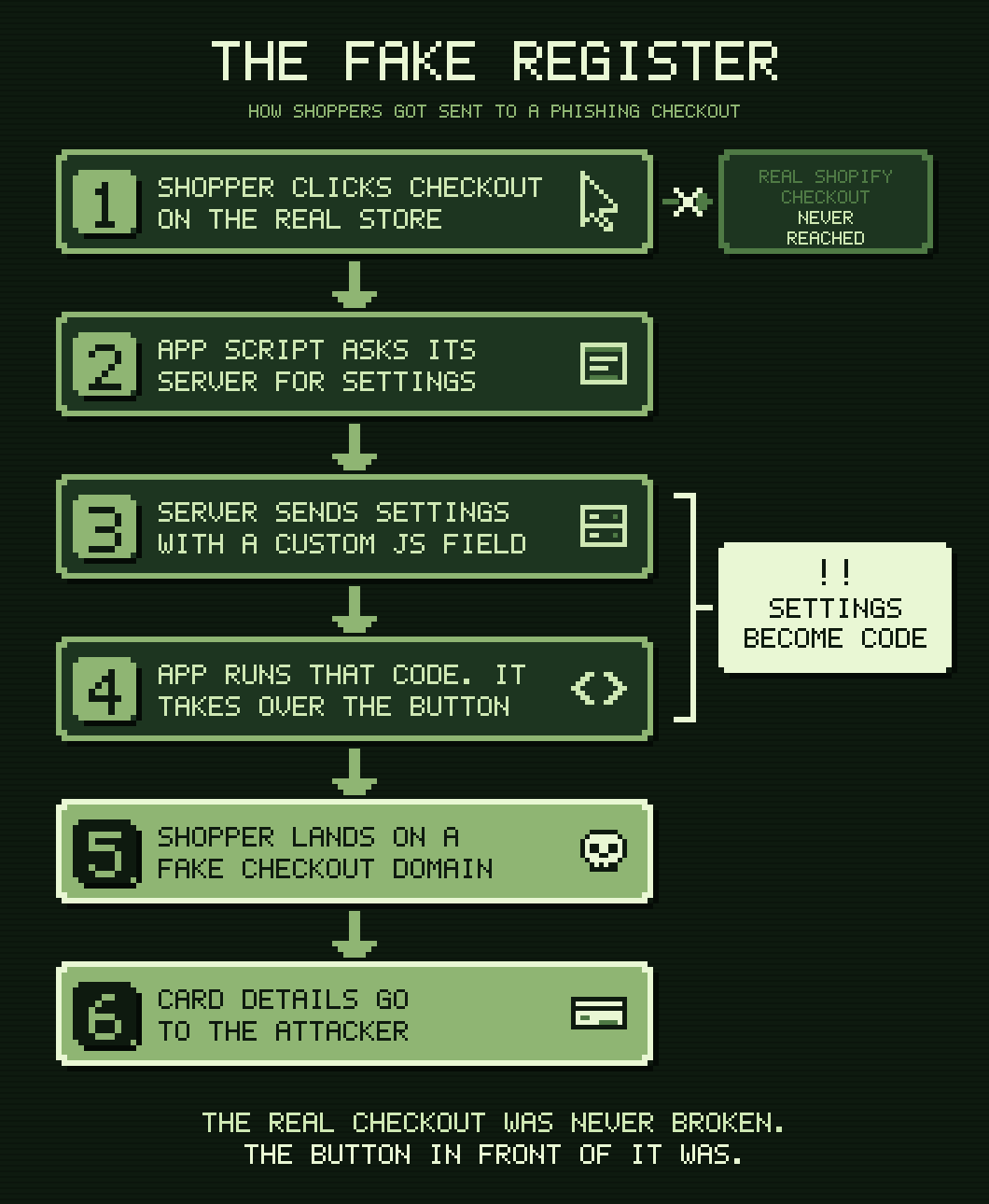
Here’s how the trick worked:
- A third-party app loaded its normal script on the storefront.
- That script asked the app’s server for the store’s settings. One setting was a “custom JS” field, which held raw JavaScript.
- The app ran that JavaScript right on the page. This time, the code was malicious.
- The code watched the Checkout button. When a shopper clicked it, they were sent to a look-alike checkout on another domain.
- The fake page collected card details, then sent the shopper to the real checkout to finish their order.
The code also set a flag in the browser so it only fired once per session. That’s why merchants who tested their own checkout often saw nothing wrong.
Researchers tied the redirects to these domains (defanged so they aren’t clickable):
biliing[.]topcheckout-confirm[.]toporder-confirm[.]top
So who put the code there?#
That’s still being sorted out, and we won’t guess. It could have been added through access on the app’s side, or through a merchant or staff login that could edit the app’s settings. For this post, the “who” matters less than the “how.” Any system that stores JavaScript as data and runs it on a storefront can become a fake register. Whoever controls that data controls your checkout button.
Why attackers go after the button, not the checkout#
Shopify’s checkout doesn’t let anyone run arbitrary JavaScript. The payment fields are hosted by Shopify, and checkout customizations are limited to sandboxed extensions.
So attackers can’t tamper with the real register. Instead, they go after the hallway right before it: the storefront, where the rules are much looser. If they can control what happens when someone clicks Checkout, they never have to touch the checkout at all.
Which Shopify surfaces are at risk?#
Not every place you can add code is equally exposed. The key questions are:
- Can it run any JavaScript, or only approved components?
- Can it touch the storefront page (the DOM), where the Checkout button lives?
- Are changes versioned and logged, or can they change silently?
| Surface | Runs any JS? | Can touch the page? | Versioned? | Risk |
|---|---|---|---|---|
| Script tags (ScriptTag API) | Yes, from any URL | Yes | No, and they’re hidden from the theme editor | 🔴 High |
Theme code (theme.liquid, sections, snippets, Custom Liquid blocks) | Yes | Yes | Limited, with per-file history only | 🔴 High |
App-side “custom JS” settings run with eval, new Function, or injected <script> | Yes, and it’s fetched at runtime | Yes | Only if the app builds it | 🔴 High |
| App proxies | Yes, served from the app’s server | Yes, on the store’s own domain | No, it’s whatever the server returns | 🟠 Medium |
| Theme app extensions (app blocks and app embeds) | Yes, from bundled assets | Yes | Yes, through app versions you can roll back | 🟠 Medium (🔴 High if the asset loads remote code) |
| Custom pixels | Yes, written by the merchant | No, it runs in an isolated iframe | No | 🟡 Low to medium |
| Web pixel app extensions | Yes, in a web worker | No | Yes | 🟢 Low |
| Checkout UI extensions | Only Shopify’s components | No, it runs in a sandbox | Yes | 🟢 Low |
| Customer account UI extensions | Only Shopify’s components | No, it runs in a sandbox | Yes | 🟢 Low |
| Shopify Functions | No, it’s server-side WebAssembly | No | Yes | 🟢 Very low |
checkout.liquid and additional scripts | Retired | — | — | ⚪ Retired |
| Headless storefronts (Hydrogen or custom) | Yes | Yes | Depends on your pipeline | Depends on you |
A few notes on the table:
- Script tags are going away. Shopify deprecated script tags. New ones can’t be created as of October 1, 2026, and existing ones stop running on March 1, 2027. Until then, check that old ones aren’t still loading on your store.
- Theme app extensions are safer, but not magic. Your bundled JavaScript is versioned with each app release, and merchants turn app embeds on or off in the theme editor. But if that versioned script downloads and runs code from your server, version control can’t see it. The fake register in this story worked exactly that way.
- Extensions are the safest place to be. Checkout UI extensions and customer account extensions run in an isolated sandbox. They can only render Shopify’s own components and can’t touch the page around them. Web pixels run in a sandbox too, so they can’t read or change the page. And every extension change ships as an app version you can audit and roll back.
Tips for app developers#
If you build Shopify apps, here’s how to make sure you’re never the one handing out folding tables.
Don’t run JavaScript from your database#
Even if a merchant typed it in. Even if it’s “their” code. Once you run a string from your database with eval, new Function, innerHTML, or a <script> tag you build on the fly, your database is part of every storefront you’re installed on. Anyone who can write to that field can change every checkout button, whether through a stolen merchant login, a support tool, or a leaked API key.
Offer settings, not code#
Most “custom JS” boxes exist to change a color, move an element, or fire an event. Turn those needs into real settings. Use theme app extension block settings, metafields, or a typed JSON config that your bundled code reads. Data should describe behavior. It shouldn’t be behavior.
Ship code only through app versions#
Put your storefront JavaScript in theme app extension assets and release it with shopify app deploy. You get a version history, a clear diff, and a one-click rollback. If you’re still using script tags, move now. You have until March 1, 2027.
If you must accept custom code, treat it like a deploy#
Sometimes you really need it. When you do:
- Require a fresh login or 2FA to edit it
- Log every change, including who made it, when, and from where
- Email the store owner whenever it changes
- Never let internal support or admin tools write to it
- Show the code in a place the merchant can see and review
Escape everything else#
Button labels, product names, and any text a merchant enters should be inserted as text, never as HTML. One unescaped label is all an attacker needs to slip in a script.
Never redirect to a domain you don’t control#
Your app should never send a shopper to a URL that came from settings, and it should never take over the Checkout button. If you need a redirect, check it against an allowlist of your own domains.
Run Shopify’s security check before every release#
On October 15, 2026, Shopify released an app security check in Shopify CLI and the Shopify AI Toolkit. It scans your app’s code, extension config, and dependencies on your own machine. Then it reports each issue with the file, line, severity, and a suggested fix.
Several of its checks cover the mistakes behind a fake register:
UNSAFE_INNERHTMLandCROSS_SITE_SCRIPTINGflag places where data gets rendered as HTMLTEXT_SETTING_HTML_SMUGGLINGandTHEME_EXTENSION_XSSflag merchant settings that can slip markup into a storefrontSCRIPT_TAG_URL_INJECTIONandDEPRECATED_SCRIPT_TAG_SCOPEflag risky script tag useOPEN_REDIRECTflags redirects to URLs you don’t control
Run it in two ways:
- With a coding agent. Install the Shopify AI Toolkit, then ask:
/shopify Check my app for security vulnerabilities. The agent runs the scan, then reviews the checks that need judgment. - From the terminal. Run
shopify app security checkin your app directory. You get the scan results, plus instructions to hand to any coding agent for the deeper review.
A clean report doesn’t mean your app is safe. There’s no check named “runs JavaScript from the database,” so the agent review and your own code review still matter. But it’s free and fast, and it catches the common mistakes. Shopify recommends running it on every release. You can make sure that happens by adding it to your CI. Here’s our guide to running the check in GitHub Actions.
Watch for the fake register#
Test checkout on a schedule with a fresh browser session every time, since once-per-session tricks hide from repeat visits. Our open-source check does this, and you can run it in CI. Alert on outbound requests to domains you don’t recognize. If you run a headless storefront or app proxy pages, add a Content Security Policy that only allows scripts from sources you trust.
Tips for merchants#
You don’t need to read code to protect your store. You just need to know where to look.
- Test checkout in a private window. Open a new private window each time, add something to your cart, and click Checkout. The address bar should show your store’s domain or Shopify’s checkout, not something unfamiliar. Or let our free check do it for you.
- Review your apps. Remove apps you don’t use. For apps you keep, check their settings for any “custom JS,” “custom code,” or “advanced” fields, and make sure you know what’s in them.
- Check your theme. In Online Store > Themes > Customize, look at App embeds and any Custom Liquid blocks. Under Edit code, look for scripts in
theme.liquidthat you don’t recognize. - Check your pixels. In Settings > Customer events, review any custom pixels.
- Lock down your team. Turn on 2FA for every staff account. Give people only the permissions they need, and remove accounts for people who’ve left.
- Change your passwords. This includes your Shopify login and any logins for app vendors’ dashboards.
- Act fast if something’s wrong. Contact Shopify Support and the app developer right away. Ask them for timestamps and the exact code that ran. Then talk to your payment provider about next steps for customers who might be affected.
Check your own store#
Testing checkout by hand is a good start, but it’s easy to miss a trick that only fires once per session. So we wrote a free, open-source check that your AI assistant can run for you.
It acts like a first-time shopper. Your assistant opens your store in a brand-new browser tab, adds a product to the cart, and clicks Checkout. Then it tells you where it ended up and looks for the known signs of this attack. It stops at the checkout page and never enters or submits anything.
You’ll need an assistant that can use a web browser. Pick yours below.
You’ll need Claude in Chrome, which comes with paid Claude plans.
- Open Chrome and go to your store.
- Open Claude in Chrome from the toolbar.
- Paste the prompt below. Replace
https://yourstore.comwith your store’s address.
Check my Shopify store's checkout for a phishing redirect. My store is https://yourstore.com. Only test this store.

Do this 3 times. Each time, start in a brand-new browser tab:
1. Open my store.
2. Add any in-stock product to the cart, then go to the /cart page.
3. Click the Checkout button once.
4. Wait a few seconds, then write down the full address of the page you land on. Don't type anything on that page.
5. Go back to my store in the same tab. If you can run JavaScript, run Object.keys(sessionStorage) and write down any key that starts with __ctf_.
6. If you can see network requests, write down any request to biliing.top, checkout-confirm.top, or order-confirm.top.

Then give me a result:
- PASS if every run landed on my store's domain or a Shopify domain (shopify.com, myshopify.com, shop.app), with nothing found in steps 5 or 6.
- FAIL if any run landed on a different domain, or steps 5 or 6 found something. Tell me exactly what you saw.
- INCONCLUSIVE if you couldn't reach checkout. Tell me what got in the way.

If it's a FAIL, tell me to contact Shopify Support right away, and to check every app's settings for "custom JS" or "custom code" fields.
Using Claude Code? Install the full check, which also flags apps that send custom JavaScript to your store:
claude plugin marketplace add ctrlaltdylan/storefront-skills
claude plugin install storefront-sec@storefront-skills
Restart Claude Code, then run /storefront-sec:checkout:hijack-scan https://yourstore.com.
You’ll need Grok Bot, xAI’s agent app. It runs tasks in its own cloud browser.
- Open Grok Bot and start a new task.
- Paste the prompt below. Replace
https://yourstore.comwith your store’s address.
Check my Shopify store's checkout for a phishing redirect. My store is https://yourstore.com. Only test this store.

Do this 3 times. Each time, start in a brand-new browser tab:
1. Open my store.
2. Add any in-stock product to the cart, then go to the /cart page.
3. Click the Checkout button once.
4. Wait a few seconds, then write down the full address of the page you land on. Don't type anything on that page.
5. Go back to my store in the same tab. If you can run JavaScript, run Object.keys(sessionStorage) and write down any key that starts with __ctf_.
6. If you can see network requests, write down any request to biliing.top, checkout-confirm.top, or order-confirm.top.

Then give me a result:
- PASS if every run landed on my store's domain or a Shopify domain (shopify.com, myshopify.com, shop.app), with nothing found in steps 5 or 6.
- FAIL if any run landed on a different domain, or steps 5 or 6 found something. Tell me exactly what you saw.
- INCONCLUSIVE if you couldn't reach checkout. Tell me what got in the way.

If it's a FAIL, tell me to contact Shopify Support right away, and to check every app's settings for "custom JS" or "custom code" fields.
Grok Bot checks your store from a cloud computer, not your own location. That’s fine for most stores, but attacks that target certain countries might not show up.
OpenClaw can run the full check, which also flags apps that send custom JavaScript to your store.
- Install the skill from a terminal:
git clone https://github.com/ctrlaltdylan/storefront-skills.git
openclaw skills install ./storefront-skills/plugins/storefront-sec/skills/checkout-hijack-scan- Start a new OpenClaw session so it picks up the skill.
- Ask: “Check my store’s checkout for hijacking. My store is https://yourstore.com.”
OpenClaw sets up a browser, runs the check a few times on desktop and mobile, and explains the results. You’ll need Node.js 18 or newer for the full check. Without it, OpenClaw falls back to clicking through your store in a browser.
You’ll get one of these results:
- Pass. Checkout reached Shopify, and nothing suspicious turned up.
- Fail. Shoppers were sent somewhere else, or the check found a known sign of this attack. Contact Shopify Support right away.
- Warning. Checkout looked fine, but an app is sending custom JavaScript to your store. Make sure you or your team added it. Only the full check in Claude Code or OpenClaw can spot this.
- Inconclusive. The check couldn’t reach checkout, often because of a password page or a custom cart. Ask your assistant what got in the way, then try again.
The skill and prompt are free and open source on GitHub.
A few things to keep in mind:
- Only check stores you own or have permission to test. Each run leaves an abandoned checkout in your admin. That’s harmless, but it’ll show up.
- A pass isn’t a guarantee. Attacks can target certain countries, devices, or times of day. Rerun the check every so often, and after you install or update an app.
Close the fake register#
Bandit’s folding table only works when no one’s watching the hallway. The best fix isn’t a bigger lock on the real register. It’s making sure nothing gets set up in front of it without someone noticing.
For developers, that means shipping code through versioned, sandboxed extensions, never running code from a database, and running Shopify’s security check on every release. For merchants, it means knowing what’s running on your storefront and testing your checkout the way a first-time shopper would.
The real register is safe. Make sure it’s the only one in the room.